
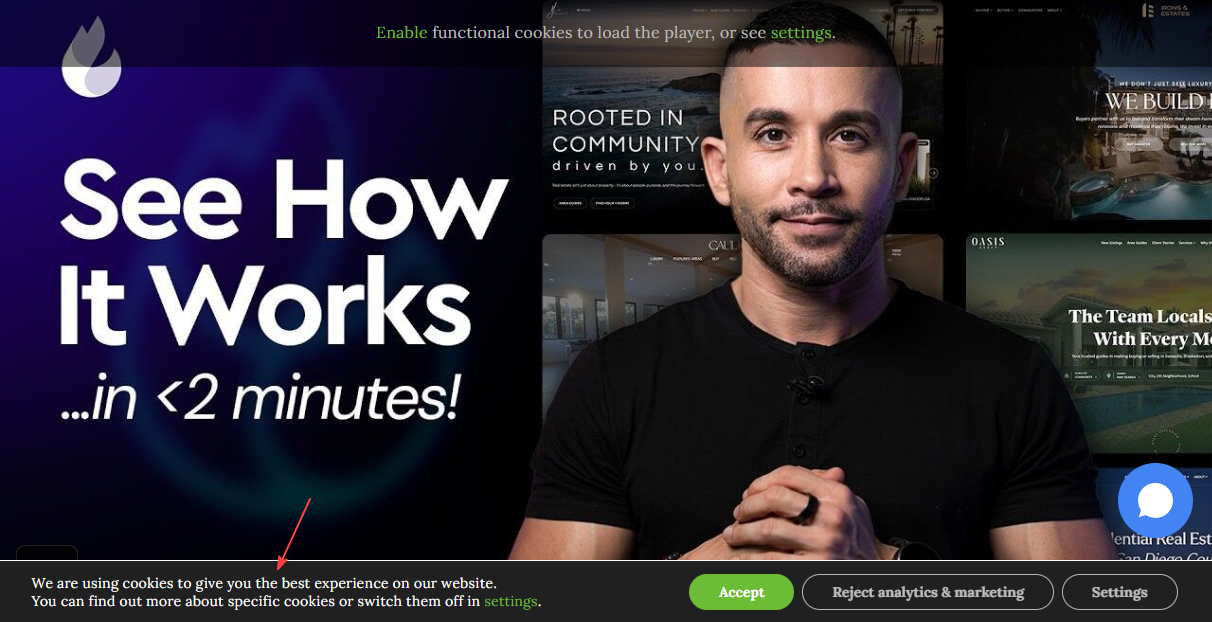
Visitors can see a cookie banner on your site and choose which optional cookies to allow. Tracking and advertising scripts wait until they agree. Strictly necessary cookies stay on so the site can load.
This is not legal advice, and turning Cookie Consent on does not mean your site is “compliant” or protected from claims. You decide whether to use it. If you need advice for your situation, talk to your attorney.
Turn on the cookie banner
You can do this yourself from the admin.
- Log in to your site’s admin dashboard.
- If you see a notice that the site looks like it uses advertising or tracking scripts, click Activate.
- Or go to Site Settings > AgentFire Settings > GDPR & Cookie Consent.
- Switch on Enable Cookie Consent and save settings.
That turns on the cookie banner with the default settings. You can change the wording later if you want.
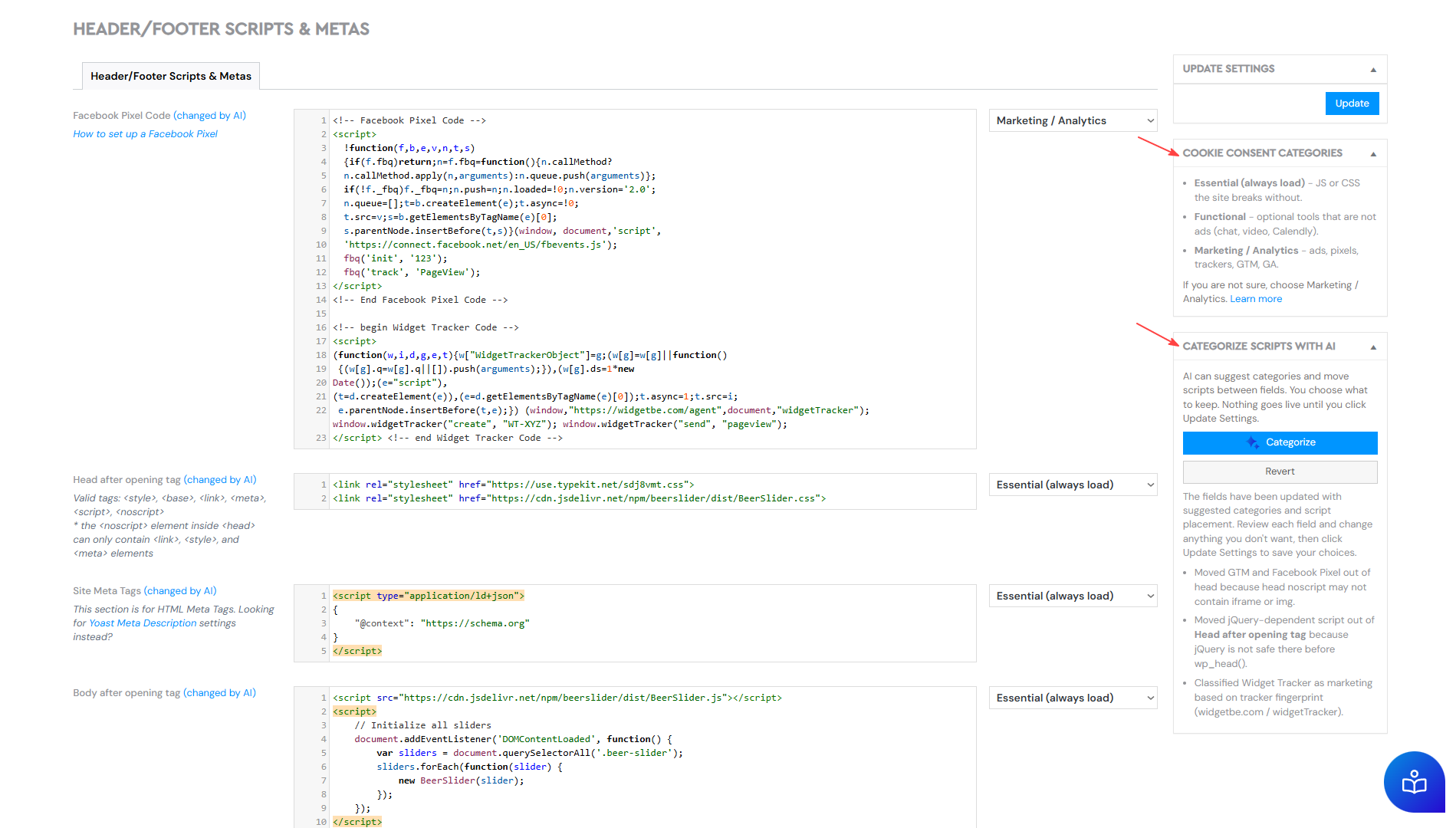
Then go to Site Settings > AgentFire Settings > Header/Footer Scripts & Metas and check the category on each field that has code. If you are not sure, choose Analytics & Marketing.
Changing cookie choices later
After a visitor makes a choice, the banner goes away. They can change that choice later with a Cookie Settings link.
On most sites that link is already on the Privacy Policy page (Managed Privacy Policy). You do not need to add anything in the footer.
Add a link yourself only if GDPR & Cookie Consent shows a warning that Managed Privacy Policy is not enabled. Put it in the footer or on the Privacy Policy page:
<a href="#cookie_settings_modal">Cookie Settings</a> Or use the shortcode [cookie_settings_modal].
If you add it in the footer: Headers & Footers > Footers, edit every footer used on the site, paste the link, and save.
Optional: edit the banner text
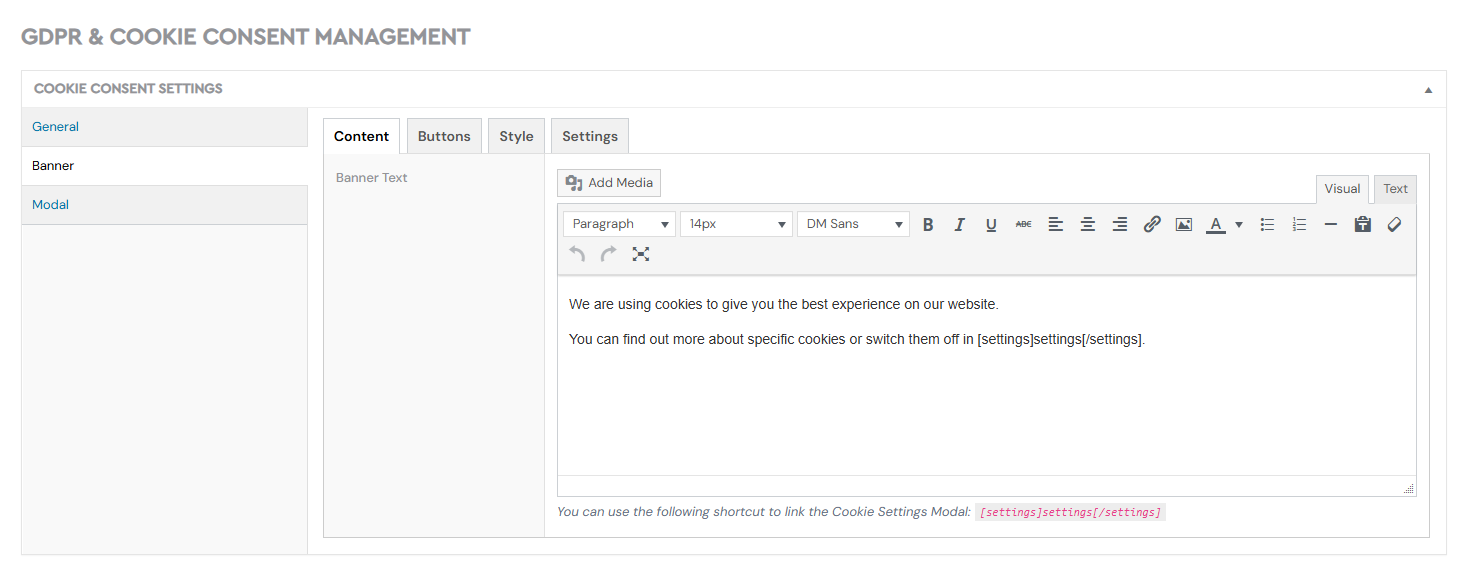
On Site Settings > AgentFire Settings > GDPR & Cookie Consent you can change:
- The banner text and button labels
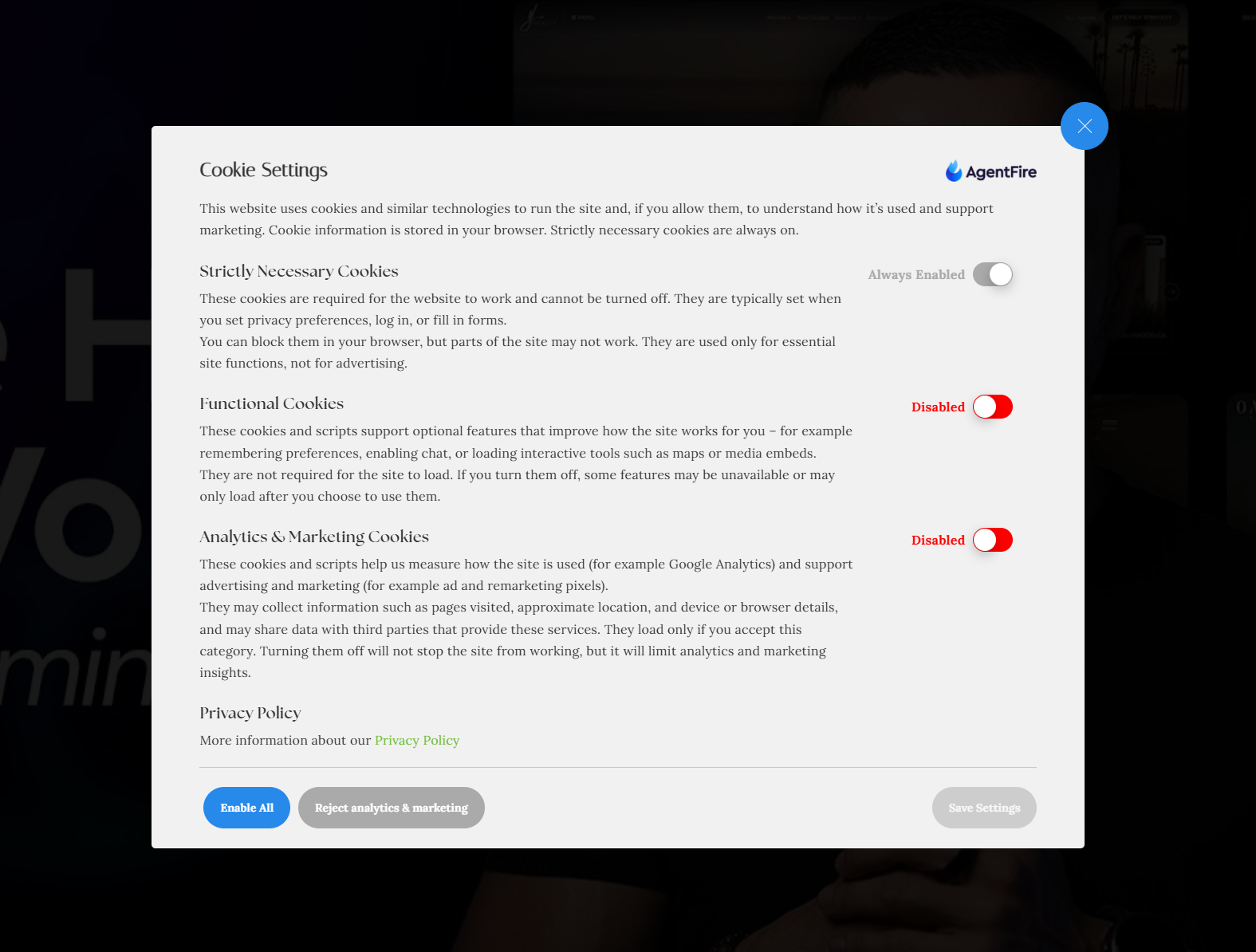
- The Cookie Settings window title and descriptions
- Colors so the banner matches your site
In the banner text you can link to the settings window with [settings]settings[/settings].
You do not need to change any of this for the banner to work.
What visitors will see
-
A cookie banner until they make a choice.
- Choices for Essential, Functional, and Analytics & Marketing cookies.
- After they choose, the banner stays gone as they browse.
- They can open Cookie Settings later from the Privacy Policy page (or from a footer / Privacy Policy link you added, if Managed Privacy Policy is off).
A few things you may notice on the live site:
- Some embedded content (videos, calendars, booking widgets) may show a placeholder until the visitor allows Functional cookies, or until they click to load it.
- Advertising and analytics reports will likely show fewer tracked conversions. Tracking only runs for visitors who allow Analytics & Marketing cookies. The visits themselves have not disappeared.
- Listing search and maps keep working. That is expected.
Cookie categories
Go to Site Settings > AgentFire Settings > Header/Footer Scripts & Metas. Each field in use has a category dropdown.
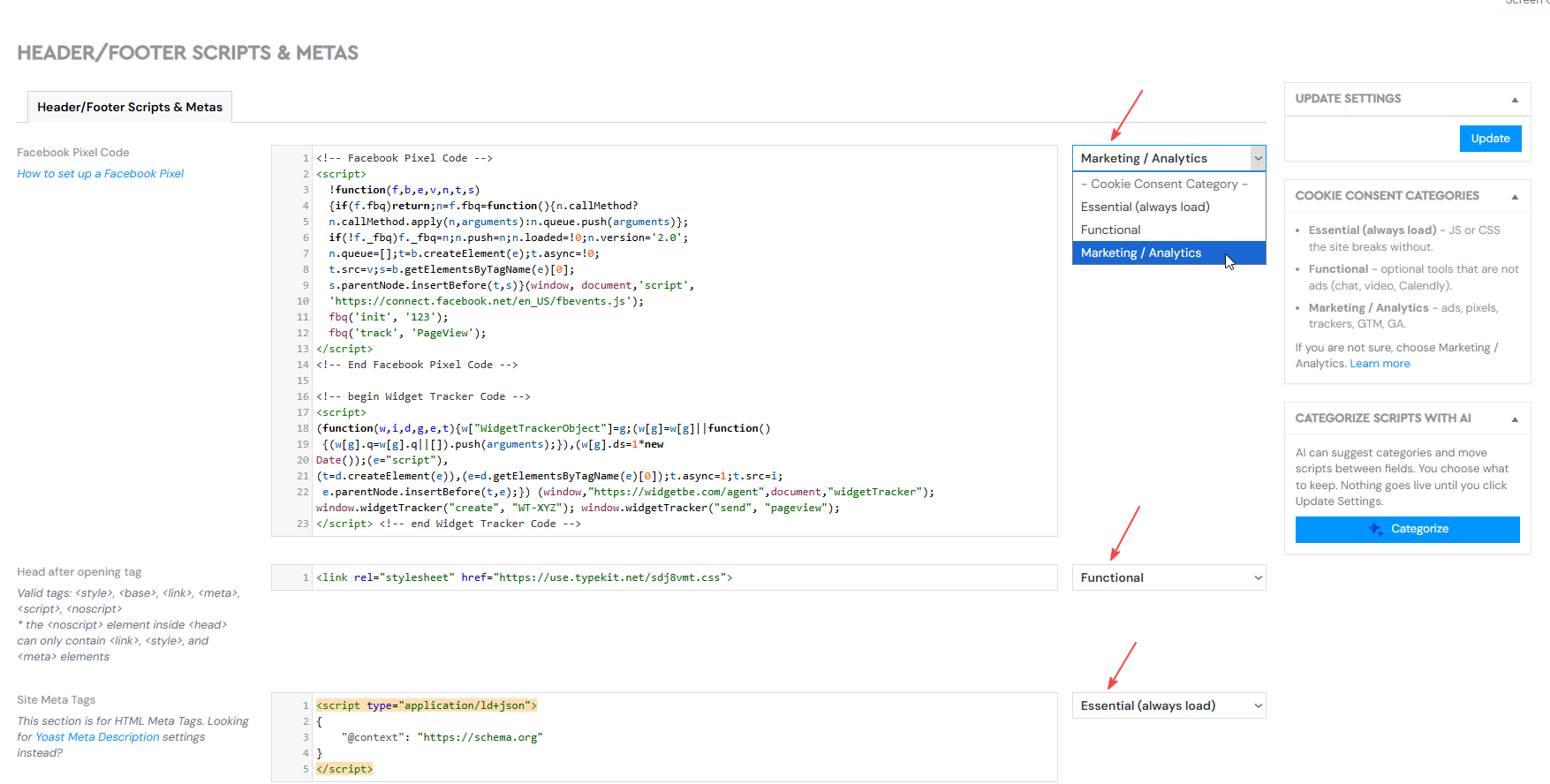
| Category | Use it for | When it loads |
|---|---|---|
| Essential (always load) | JS or CSS the site breaks without. | Always |
| Functional | Optional tools that are not ads (chat, video, Calendly). | After the visitor allows Functional |
| Analytics & Marketing | Ads, pixels, trackers, GTM, GA. | After the visitor allows Analytics & Marketing |
If you are not sure, choose Analytics & Marketing.
Maps, listing search, and other built-in features are already set. Use the rest of this section if you pasted tracking or widget code yourself.
Categorize with AI
Categorize scripts with AI is in the sidebar on Header/Footer Scripts & Metas (the whole site) and on Advertising and Tracking Scripts in Page settings (that page or post only). It can suggest categories and move code between the fields on that screen. That is a suggestion, not a legal review.
- Click Categorize.
- Wait until it finishes.
- Review each field and change anything you do not want. Changed fields are highlighted.
- Click Update Settings to save your choices, or Revert to undo.
Nothing goes live until you click Update Settings. The categories on the site are the ones you save.
A run on Header/Footer Scripts & Metas does not change a page or post. A run in Page settings does not change the site-wide fields or other pages.
Where each script goes
Put each script in the field from this table. Using a different field can stop it from working.
| Script | Field | Category |
|---|---|---|
| GA4 / gtag.js | Facebook Pixel Code | Analytics & Marketing |
| Google Tag Manager (plus its noscript tag in body) | Facebook Pixel Code + Body before closing tag / Google Remarketing Script (*) | Analytics & Marketing |
| Meta Pixel (plus its noscript tag in body) | Facebook Pixel Code + Body before closing tag / Google Remarketing Script (*) | Analytics & Marketing |
| Two marketing scripts that both need the head | Facebook Pixel Code | Analytics & Marketing |
| Hotjar, Microsoft Clarity, session recording | Facebook Pixel Code | Analytics & Marketing |
| JSON-LD / schema markup | Site Meta Tags | Essential |
| Custom CSS or JS with no outside requests | Site Meta Tags, Body after opening tag, or Footer after opening tag | Essential |
| Google Ads remarketing | Google Remarketing Script | Analytics & Marketing |
| Chat widget | Footer before closing tag | Functional |
(*) Ignore the official recommendation to put <noscript> early. It is not relevant for normal visitors. Put the GTM or Meta noscript tag in Body before closing tag or Google Remarketing Script.
JS, CSS or Fonts loaded from another site: you choose the category. If you are not sure, choose Analytics & Marketing. Functional code goes in Head after opening tag. Essential code goes in Site Meta Tags. Categorize may fill this in. You still choose what to save.
If the code uses jQuery, put it in Body after opening tag or a footer field, not in Head after opening tag.
Do not put Facebook, Google Tag Manager, or gtag tracking on Essential. Those belong on Analytics & Marketing.
If two scripts work together (for example one uses fbq or gtag from the other), give them the same category.
If a field shows a warning, read it before you save.
Page-level scripts
Edit opens the visual editor. Advertising and Tracking Scripts is not there.
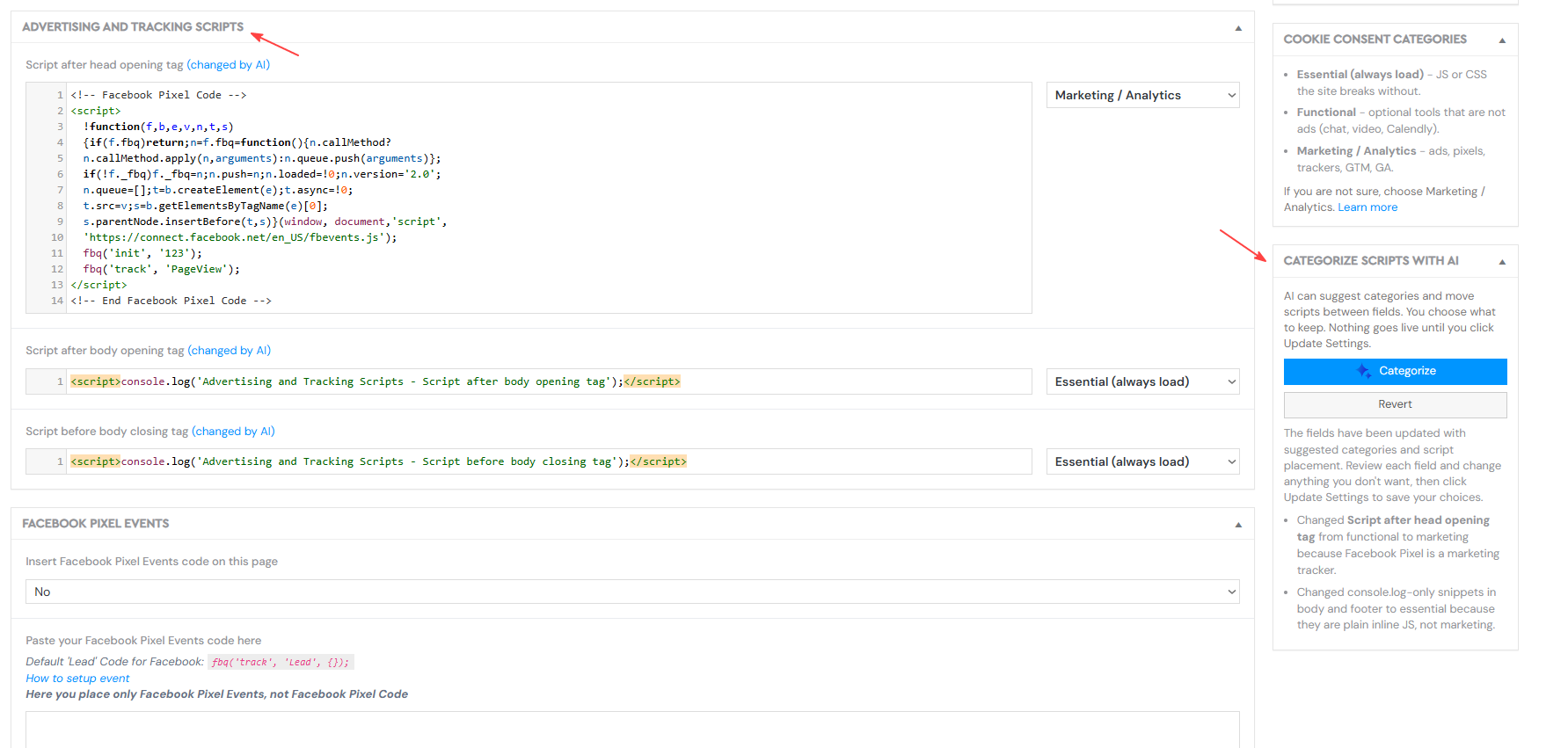
Open Pages or Posts, then on the row open Actions and choose Page settings. Look for Advertising and Tracking Scripts:
- Script after head opening tag
- Script after body opening tag
- Script before body closing tag
The same Categorize sidebar is on this screen. It only changes those three fields on this page or post.
Check the home page first, then any landing pages you run ads to. Use the same table as above. On a page, Pixel / GTM script go in Script after head opening tag, and the noscript tag goes in Script before body closing tag.
Custom code in the Spark Editor
Edit also opens the Spark Editor. A Coder widget can hold custom HTML or JavaScript (for example a third-party embed). When Cookie Consent is on, that widget has a Cookie Consent Category dropdown: Essential, Functional, or Analytics & Marketing.
The default is Essential, so the code loads before the visitor chooses. If it is a widget, chat, video, calendar, or tracker, change the category. If you are not sure, choose Analytics & Marketing.
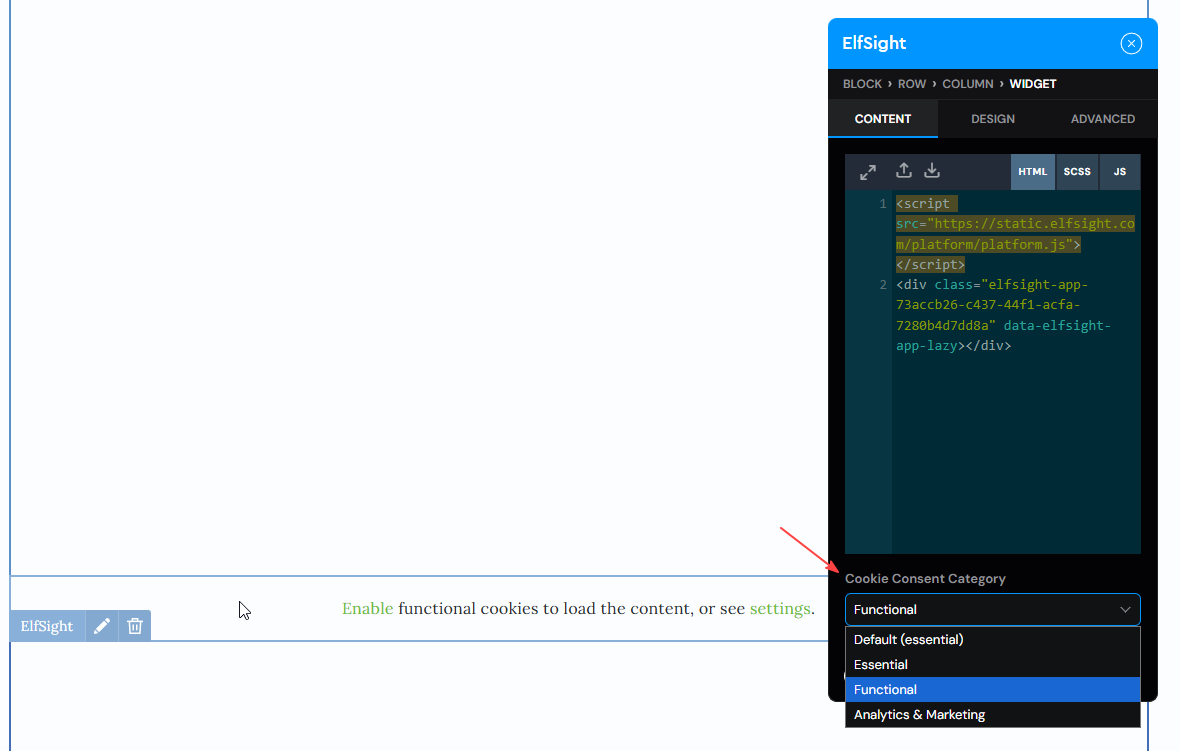
Categorize does not change Coder widgets. Set the category on the widget.
Visitors may see a placeholder on that block until they allow the matching category, or until they click to load it.
Check that it is working
Open your site in a private/incognito window (not while you are logged in to the admin). Confirm:
- The cookie banner appears on the first visit.
- After you make a choice, the banner disappears and stays gone when you visit another page.
- The Privacy Policy page has a Cookie Settings link (skip this check if Managed Privacy Policy is off and you have not added a link yet).
- Clicking that link opens a window with the category toggles.
FAQ
Why am I seeing a notice in my dashboard?
Your site looks like it uses advertising or tracking scripts. You can show visitors a cookie banner so they can manage their cookie preferences.
Do I have to turn it on?
No. It is your choice. Some sites use advertising or analytics tools that send data to other companies. A cookie banner lets visitors choose those optional cookies. Whether you need that for your situation is a question for your attorney.
Will this make my site legally compliant?
Cookie Consent is a tool. It does not mean the site is compliant, and it is not legal advice.
Do I need to categorize every script myself?
Categorize can suggest categories on Header/Footer Scripts & Metas and on Advertising and Tracking Scripts in Page settings. You still review each field and save. It does not change Coder widgets in the Spark Editor. Set those on the widget. If you are not sure, choose Analytics & Marketing.
Categorize put a script in the wrong place
Do not save yet. Click Revert, or fix the field using the table above, then Update Settings. If you already saved and something on the site broke, contact support with your site URL.
Why did my ad reports drop?
Tracking pixels and tags only load after a visitor allows Analytics & Marketing cookies. Fewer agreed visits means fewer tracked conversions. Traffic to the site has not necessarily changed.
Google says my tag wasn't detected
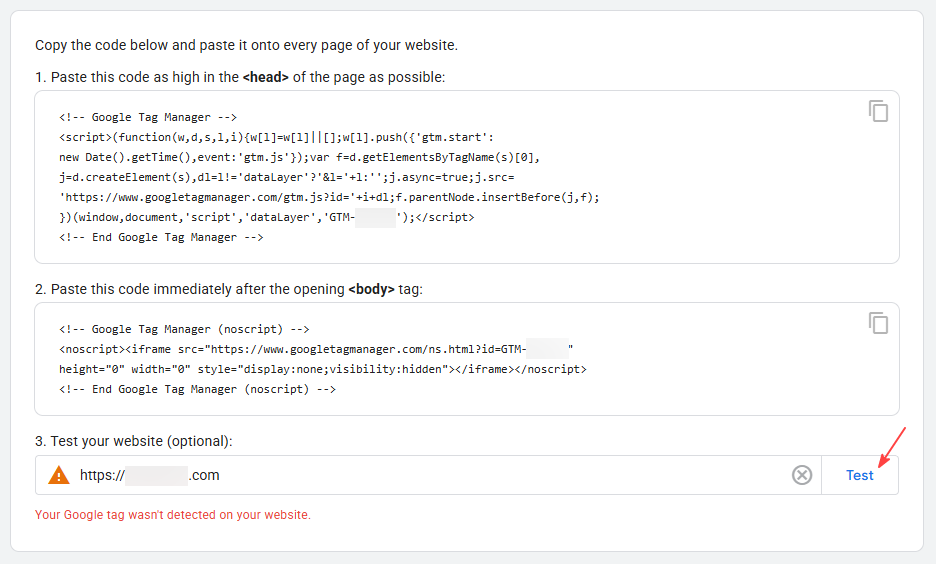
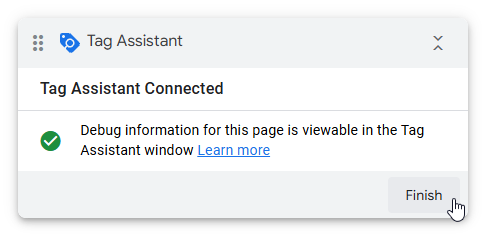
The Test button on the install screen does not click the cookie banner, so Analytics & Marketing tags do not load. Use Google Tag Assistant, open the site, allow Analytics & Marketing, then confirm the tag. Fewer tracked visits after that is expected.
Why is a video, chat, or calendar missing until I click?
Those are Functional. They wait until the visitor allows Functional cookies, or until they choose to load that embed.
Why do maps and listing search still work before anyone clicks the banner?
They are part of how the site works for visitors looking at properties. That is expected, not a bug.
The banner never appears, or it comes back on every page
Contact support with your site URL and what you see. Check first in a private/incognito window while logged out of the admin.
A form, map, video, or the layout looks broken after I turned it on
Contact support with your site URL and what broke.
Can visitors change their mind later?
Yes. On most sites they use the Cookie Settings link on the Privacy Policy page. If Managed Privacy Policy is off, add that link in the footer or on the Privacy Policy page.
I use a scanning tool and it still reports third-party requests before consent
Send the report and your site URL to support. A cookie banner does not mean every outside request stops.
When to contact support?
Contact support if:- The banner does not appear at all
- The banner comes back on every page after a choice
- Visitors cannot change their cookie choice later
- A map, video, calendar, listing search, or form stopped working
- The site looks visibly broken after you turned Cookie Consent on
- Categorize fails, or the site looks broken after you saved what it suggested
- You do not need to contact support to turn Cookie Consent on. For Facebook, Google, and GTM, use the table above.
You can find us at support@agentfire.com!