
Every agent has trusted businesses they recommend to clients. The Vendors tool gives you one place to add, manage, and showcase those recommendations directly on your AgentFire website.
Add a Vendor
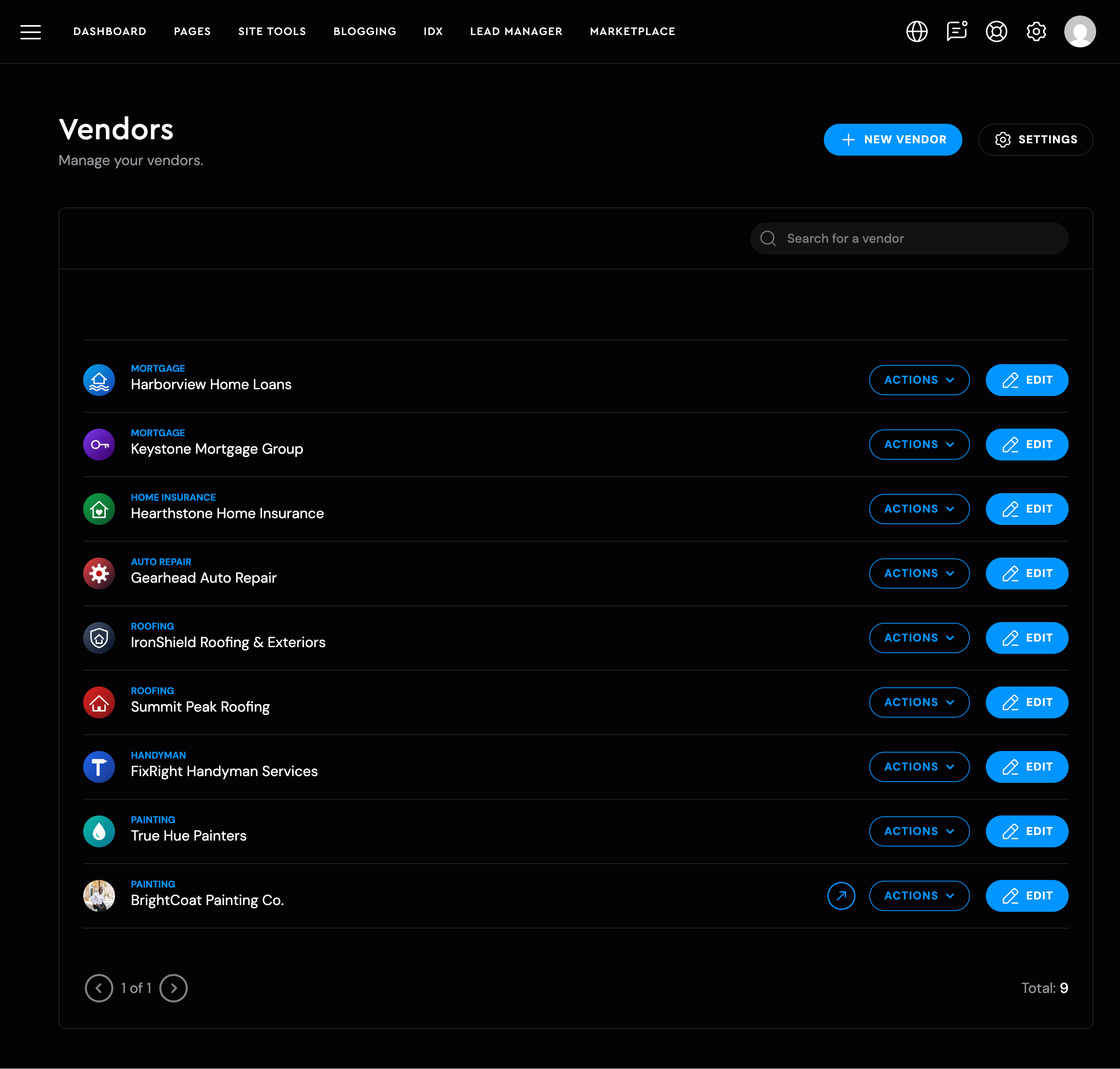
Head to the Vendors tool under Site Tools in your AgentFire dashboard and add a new vendor.
You’ll have two profile options to choose from:
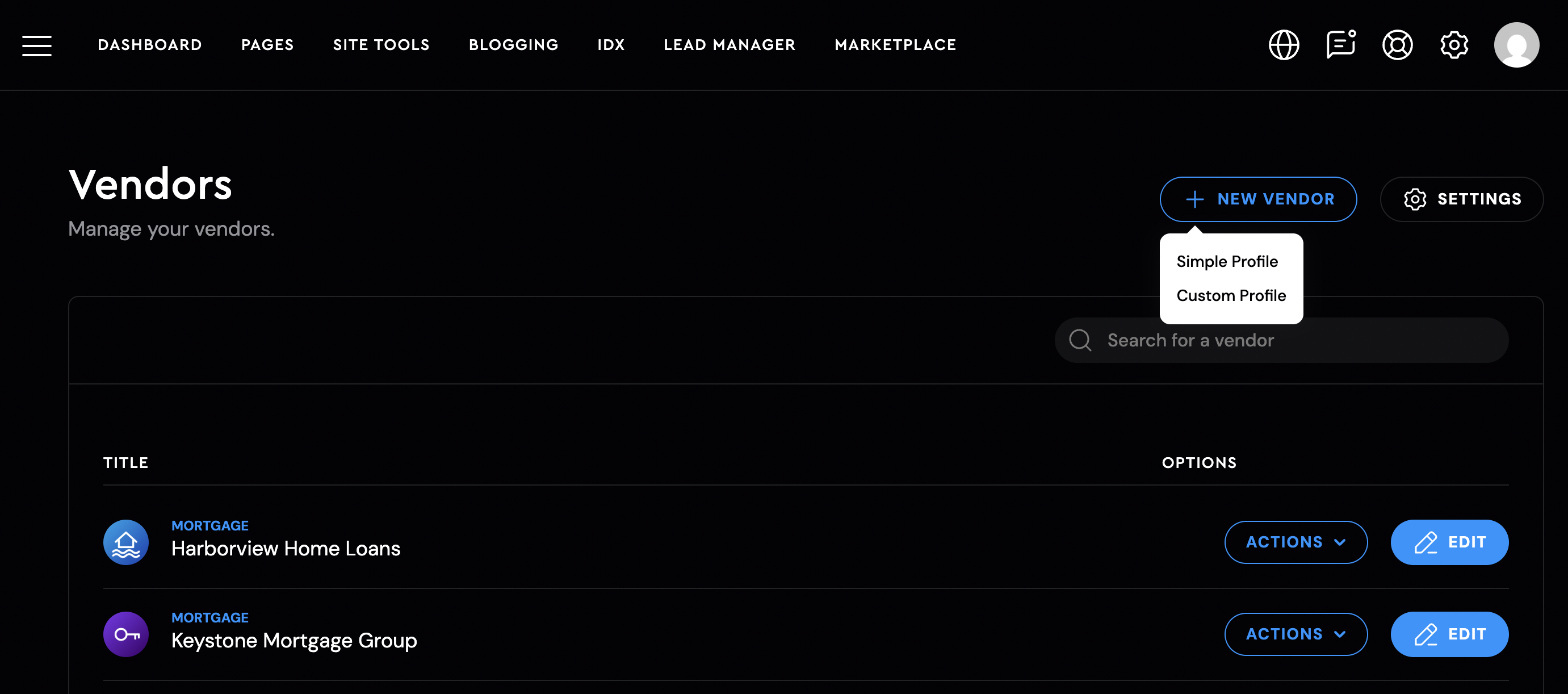
Simple Profile
Simple Profiles are the quickest way to add a vendor.
Add the vendor’s:
- Business logo
- Business name
- Description
- Contact information
The vendor can then be displayed on your website through a simple vendor card.
.png?width=418&height=399&name=%232-%20screencapture-launches-thesparksite-wp-admin-admin-php-2026-10-08-18_14_28%20(1).png)
Custom Profile
Choose a Custom Profile when you want to give a vendor their own page and provide visitors with more information about the business and why you recommend them.
.png?width=670&height=341&name=%236%20Screen%20Shot%202026-10-08%20at%206.15.48%20PM%20(1).png)
Custom Profiles work with Template Manager, allowing you to create a reusable layout for your vendor pages.
.png?width=670&height=311&name=%235%20Screen%20Shot%202026-10-08%20at%206.16.00%20PM%20(1).png)
You can also use dynamic widgets within the page to automatically pull in the vendor’s business information while still customizing individual vendor pages when needed.
.png?width=668&height=1221&name=%237screencapture-launches-thesparksite-vendors-2026-10-08-18_42_48%20(1).png)
%20(1).png?width=670&height=1514&name=%238%20screencapture-launches-thesparksite-brightcoat-painting-co-2026-10-08-14_20_48%20(1)%20(1).png)
Display Vendors on Your Website
Once you’ve added your vendors, use the new Vendors widget to display them on your website.
Add the widget to the page where you’d like your vendors to appear, and your vendor profiles will automatically populate.
Visitors can then browse and filter your vendors to easily find the business or service they need.
Coming Next: Vendors + AgentFire Go
We’re also working on bringing Vendors into AgentFire Go.
Once available, you’ll be able to add new vendors from your phone and quickly share an individual vendor, a category of vendors, or your entire vendor list while you’re on the go.
Need help? Reach out to us anytime at support@AgentFire.com.
Luke’s walkthrough: https://www.loom.com/share/36bf45fd5f9b49b8b1f8b20364714057